 Blindspot
The free trading journal for TopstepX
If you trade a Topstep Trading Combine or funded account on TopstepX, every trade you take is already in its Trades tab. Blindspot turns that tab's export into a trading journal: net P&L after fees, win rate, expectancy, profit factor, a calendar of every session and a place to note why you took each trade. Upload one CSV and it is all there, with no login and no API key.
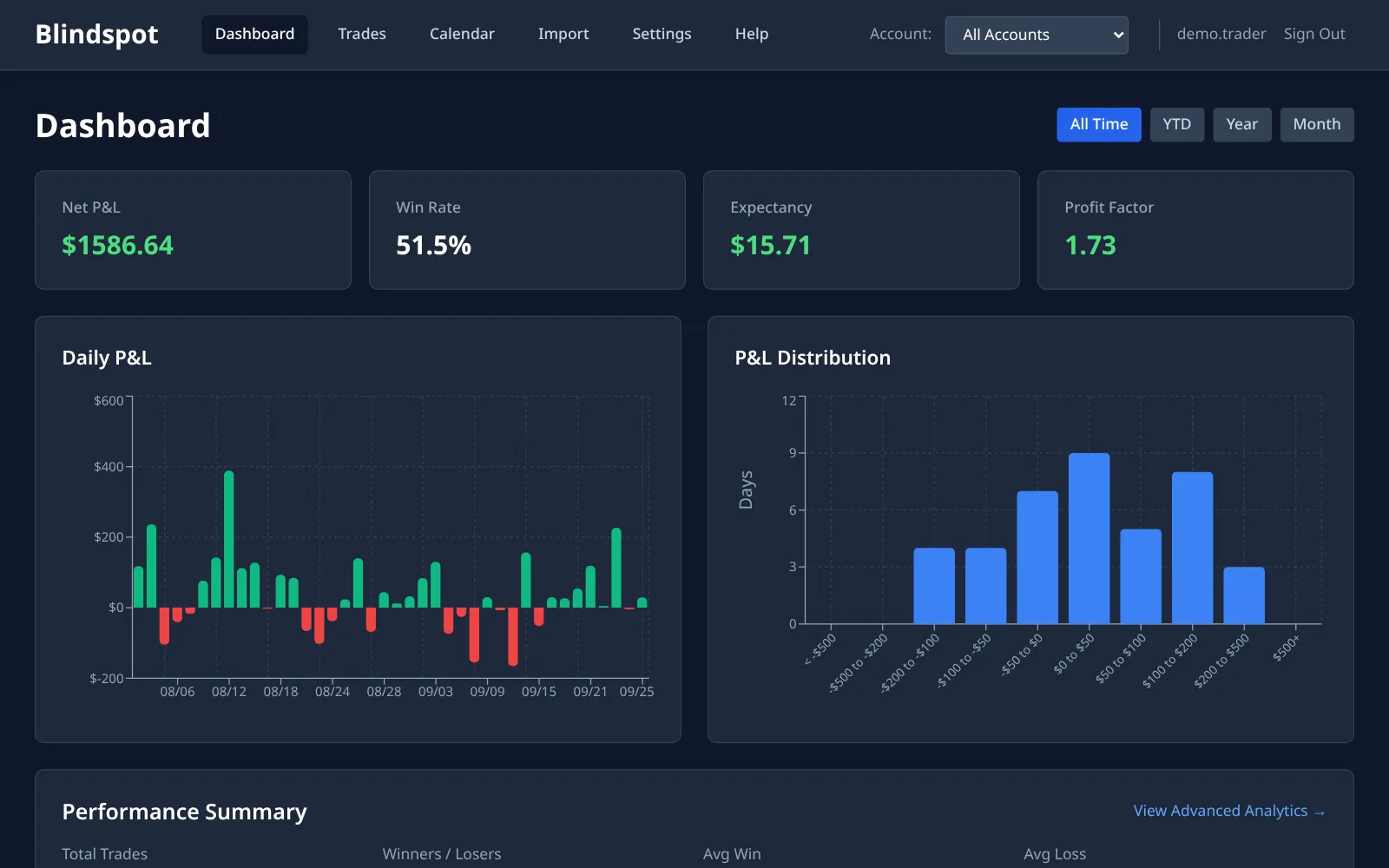
How to import your TopstepX trades into Blindspot
1 Open the Trades tab
Log in to TopstepX and open the Trades tab at the bottom of the trading screen. Use Trades, not Orders. The Orders export lists every order you placed, including cancelled ones, and Blindspot's TopstepX import reads the Trades export, where each row is one closed trade with its entry, exit and P&L.
2 Export a date range
Click Export, choose the date range and export. TopstepX saves a CSV of your trades, usually named something like trades_export.csv. For a first import, export your whole history. After that, a weekly export is plenty.
If the file comes back empty, widen the range by a day on each side. For today's trades, start the range yesterday and end it two days from now.
3 Upload it to Blindspot
In Blindspot go to Import, choose TopstepX (Trades CSV) as the source and upload the file. Each row already describes a complete trade, so there is nothing to pair up. Blindspot reads the contract, direction, size, prices and times, and subtracts the Fees and Commissions columns from the PnL column, which TopstepX reports before costs.
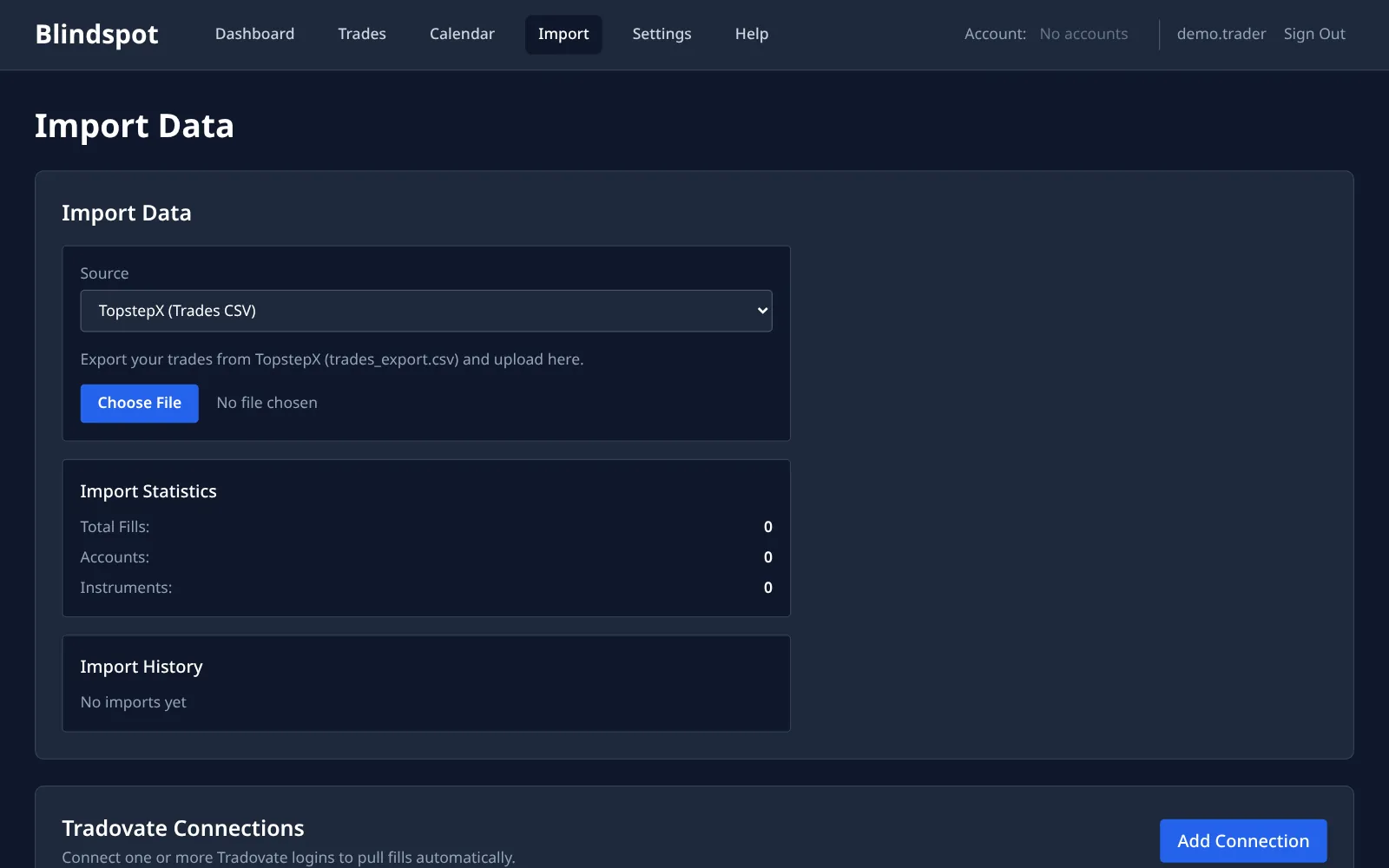
4 Review your sessions
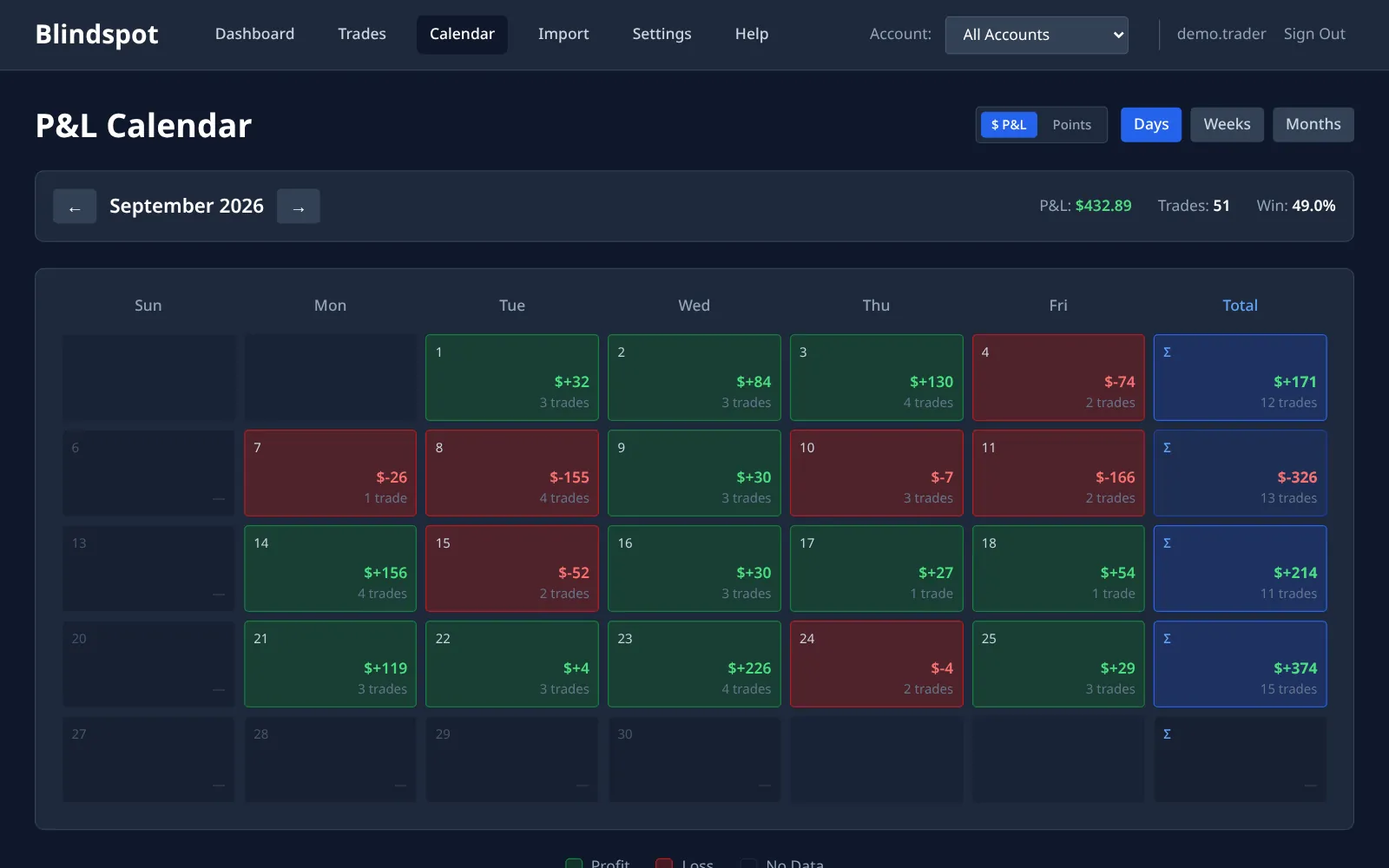
The dashboard, calendar and analytics are ready as soon as the upload finishes. The calendar is where most Topstep traders start: every session coloured by its net result, with weekly totals on the right.
Why journal a Topstep account outside TopstepX
TopstepX shows you the account: balance, open positions and the trades you took today. Passing a Combine, and keeping a funded account, depends on things it doesn't track for you: which setups pay, which hours cost you, and which days you broke your own rules. That is what Blindspot is for.
- Net P&L after fees, per trade. Micro contracts make fees a large share of a small win. Because every number in Blindspot is after costs, a setup that only wins before fees shows up as the loser it is.
- Your own daily rules. Set a daily loss limit tighter than the firm's, a maximum number of trades, or a profit target to stop at. The calendar marks every day you kept to them and every day you didn't.
- Best day against the rest. Many prop firms cap how much of your profit can come from one day. The calendar and daily P&L chart show at a glance whether one session is carrying the account.
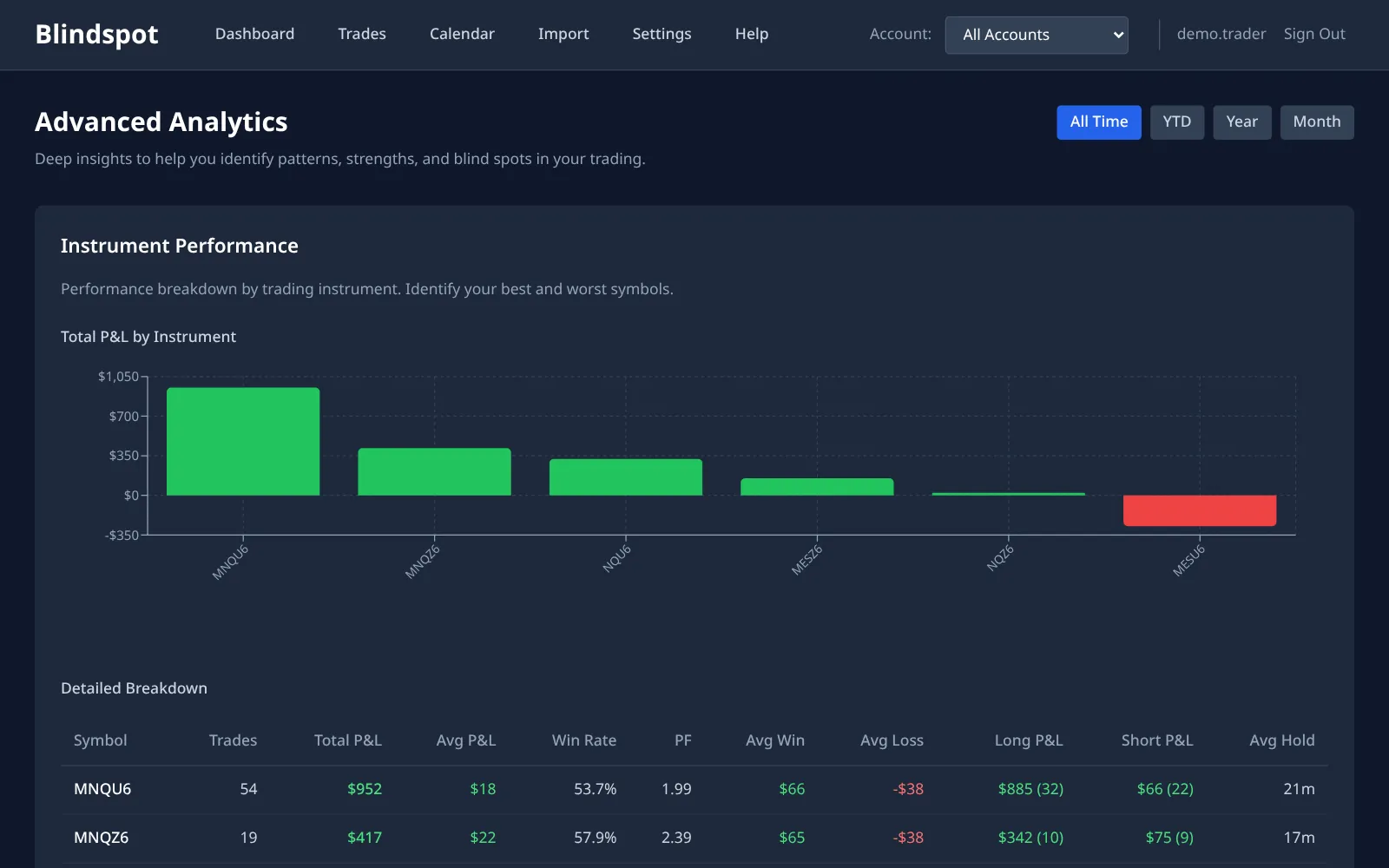
- Instrument, hour and weekday breakdowns. Find the contract or the time of day that quietly drains the account.
- A journal on every trade. Notes, setup and mistake tags, and chart screenshots, saved on the trade itself. With the Daily Journal turned on, each day also gets a pre-market plan and a post-session review.
- Everything in one place. TopstepX trades sit next to accounts imported from Tradovate or NinjaTrader, or combined under All Accounts.
Frequently asked questions
Why is my TopstepX export empty?
Usually the date range excluded your trades, or the export came from the Orders tab. Export from the Trades tab and widen the range by a day on each side. For today's trades, start the range yesterday and end it two days from now.
Is the P&L in Blindspot before or after fees?
After. The PnL column in the TopstepX export is before costs, so Blindspot subtracts the Fees and Commissions columns from every trade. Every figure in Blindspot, from the trade list to the dashboard, is net of those costs.
Can I keep several Topstep accounts apart?
Not automatically. The TopstepX export does not say which account a trade came from, so every TopstepX upload goes into one Blindspot account called TopstepX. To review one Trading Combine or funded account on its own, set the From and To dates on the Trades page to the period you traded it, and step through those months on the calendar.
Do I need to set my time zone?
Not for accuracy. Every time in the TopstepX export carries its UTC offset, so Blindspot knows exactly when each trade happened. Blindspot then shows the times, and groups trades into days, in the time zone set in Blindspot Settings.
Can I re-import without duplicating trades?
Yes. Every row carries TopstepX's own trade ID, so uploading an overlapping export updates the trades Blindspot already has instead of adding them twice.
How much does it cost?
Blindspot is free while in beta. No credit card required.
Also works with
Blindspot also imports from Tradovate and NinjaTrader, as well as AMP / CQG, MetaTrader 5, TradingView and DayTraders.com exports. Pick the source on the Import page. Trades can also be entered by hand.
Stop guessing. Start measuring.
Export your TopstepX trades and see your real edge in under two minutes.
Create your free account