 Blindspot
A free trade journal for MyFundedFutures (MFFU) accounts
MFFU offers a long list of platforms, and Blindspot can read files from three of them. Your trades come in from the platform you trade on, not from MFFU itself, so the first question is which one you use. This page goes through them.
- No firm integration needed: you import from the platform you trade on
- Tradovate: file export, or Blindspot's Tradovate connection
- NinjaTrader and TradingView: file export
- Other platforms: enter trades by hand
This is an independent guide written by Blindspot, not a page of MyFundedFutures. Blindspot is not affiliated with MyFundedFutures. This page says nothing about their rules, payouts or approval.
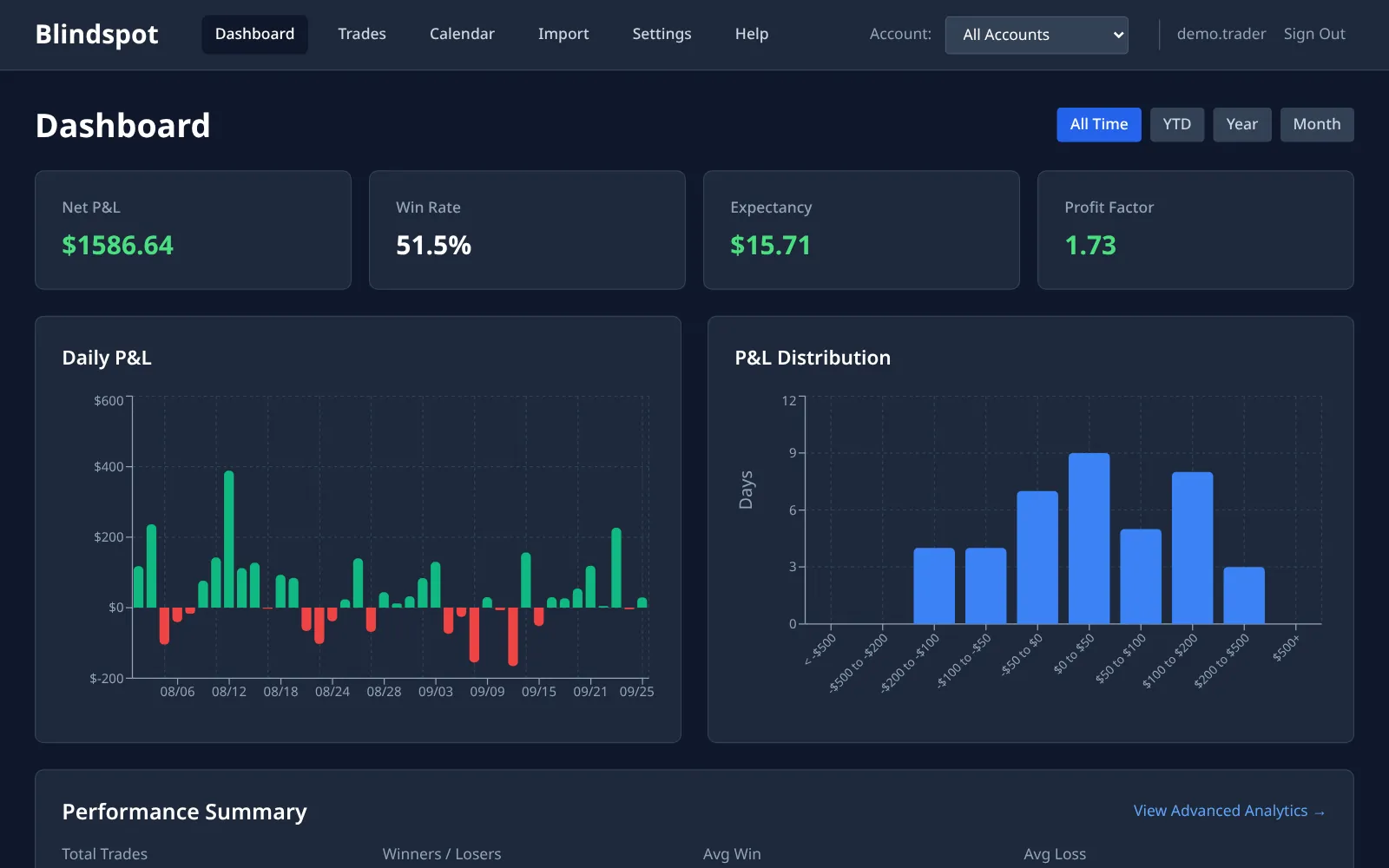
How to bring your MFFU trades into Blindspot
1 Find your platform
MFFU's help centre lists NinjaTrader, Hyperprop, Tradovate, TradingView, Quantower, Volumetrica, DeepChart/DeepDom and ATAS. Find yours in the list below.
2 Export from that platform
- Tradovate: export from the Performance page, or connect Tradovate in Blindspot. See the Tradovate guide.
- NinjaTrader: export from the Trade Performance window. See the NinjaTrader guide.
- TradingView: download your order history. See the TradingView guide. MFFU's own TradingView instructions have you log in through Tradovate from the trading panel, so a Tradovate export may be open to you as well. Use one or the other for the same trades, not both.
- Hyperprop, Quantower, Volumetrica, DeepChart/DeepDom or ATAS: Blindspot has no import for these. Enter trades by hand.
3 Upload it to Blindspot
In Blindspot go to Import, choose the source that matches your file, such as Tradovate (CSV) or NinjaTrader (Trade Grid CSV), and upload it. Tradovate and NinjaTrader files name their account, so each account stays apart in Blindspot. A TradingView file doesn't, so choose the account on the Import page.
What to look at once your trades are in
- Commission. If an export or connection brings in no commission, net P&L equals gross until you set your per-contract cost in Settings → Commissions.
- Time of day and instrument. Breakdowns by hour, weekday and contract show where your results come from.
- Your own rules, not the firm's. Trading Rules lets you set a daily loss limit, a trade count or a profit target to stop at, and the calendar marks the days you kept them. These are your own numbers. Blindspot doesn't check them against anything of MFFU's.
Frequently asked questions
Is this an official MFFU tool?
No. Blindspot is an independent trading journal and is not affiliated with MyFundedFutures. You bring in your trades from your own platform.
Does Blindspot check my firm's rules?
No. Blindspot knows nothing about any firm's rules, drawdown limits or payouts, and can't tell you where you stand with them. You can set your own daily limits in Trading Rules, and those are only yours.
Do I have to give Blindspot my login?
Not for file imports: you export a file and upload it. Blindspot's automatic Tradovate connection does use a Tradovate username and password, stored encrypted. It is optional, and whether a firm allows third-party connections is a question for the firm.
I trade on TradingView with MFFU. Which export do I use?
The TradingView order history works. MFFU's TradingView instructions log you in through Tradovate, so you may also have Tradovate's exports. Pick one and stay with it: the same trades uploaded from both sources are not recognised as duplicates.
Does the automatic Tradovate connection work with MFFU accounts?
It signs in with a Tradovate username and password. We have not tested it with MFFU logins specifically, so the file export is the sure route.
How much does it cost?
Blindspot is free while in beta. No credit card required.
Also works with
Step-by-step guides: Tradovate, NinjaTrader and TradingView. Blindspot also imports from TopstepX, AMP, MetaTrader 5 and DayTraders.com. Pick the source on the Import page. Trades can also be entered by hand, and you can connect ChatGPT or Claude to ask questions about your journal, or browse the demo journal first.
Where this comes from
The platform lists above come from these pages, checked 1 November 2026. Firms change what they offer, so trust your own dashboard over this page.
Stop guessing. Start measuring.
Export your trades from the platform you use for MFFU and see what they add up to.
Create your free account