 Blindspot
The free trading journal for NinjaTrader
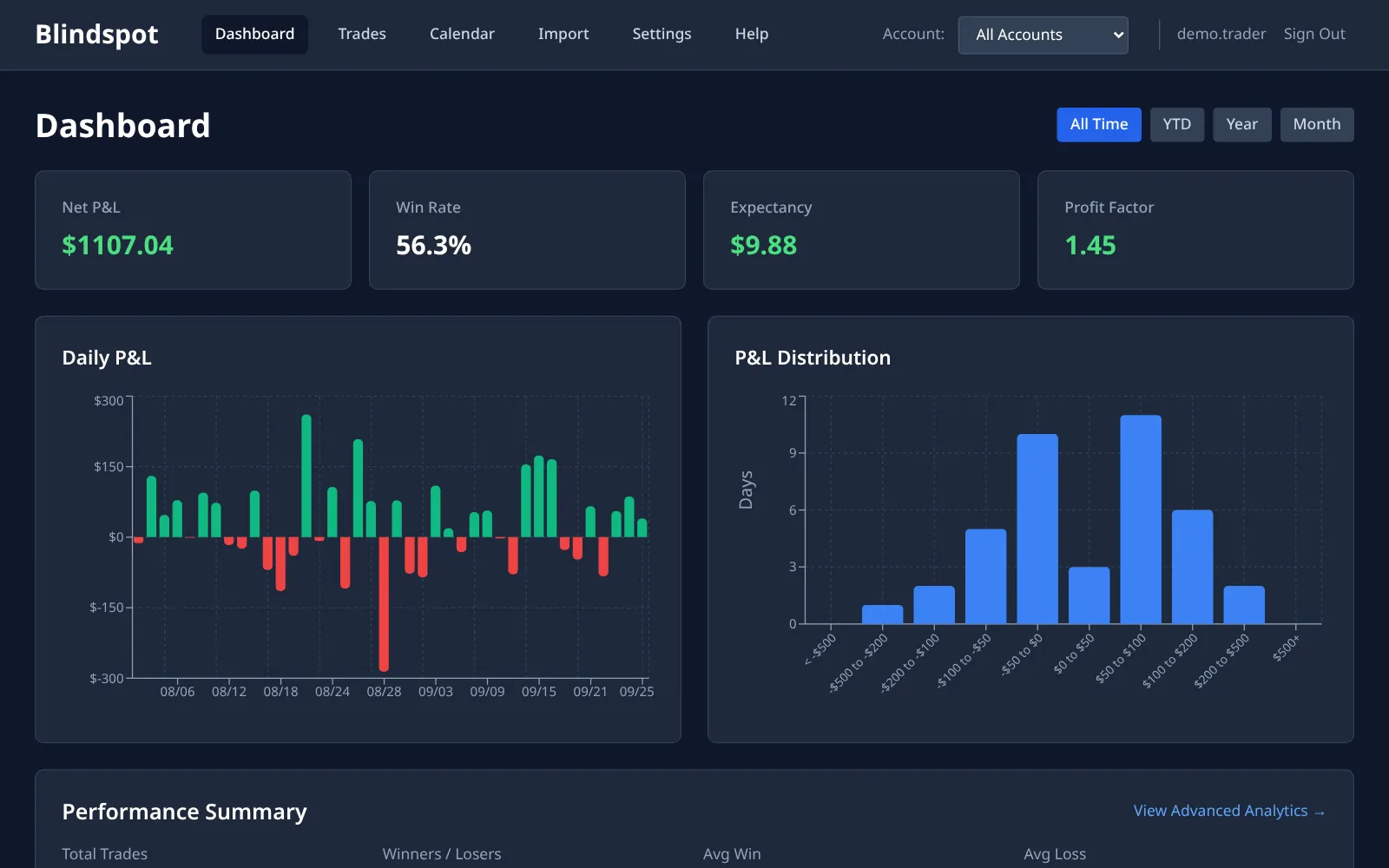
NinjaTrader 8 already records every trade you take, and its Trade Performance window can export them all in one file. Blindspot turns that export into a trading journal: every trade listed with its P&L, win rate, expectancy, profit factor and drawdown, a calendar of every session, and a place to write down why you took each trade. It works for Sim101, brokerage accounts and prop-firm accounts alike, and it needs no add-on, no login and no API key.
How to export your trades from NinjaTrader 8
The export comes from the Trade Performance window in the NinjaTrader 8 desktop platform. It takes about a minute the first time.
1 Open Trade Performance
In the NinjaTrader Control Center, click New and choose Trade Performance. A new window opens with account and date selectors on the left.
2 Pick accounts and dates, then Generate
Select the accounts you want to journal. You can select several at once, and each one keeps its own identity in Blindspot. Set From and To; for a first import, go back as far as your history goes. Then click Generate.
Only closed trades appear. A position you are still holding when you export shows up in your next export, once it is flat.
3 Show Trades and export as CSV
Set the display dropdown to Trades, not Executions or Summary. In this view each row is one complete trade from entry to exit. Right-click anywhere in the grid, choose Export, pick CSV as the file type and save it.
Keep the default columns. Blindspot needs Trade number, Instrument, Account, Market pos., Qty, Entry price, Exit price, Entry time, Exit time and Profit. The Commission, Clearing Fee, Exchange Fee, IP Fee and NFA Fee columns are optional and are subtracted when present. If you have hidden columns through the grid's Properties, show them again before exporting.
4 Upload it to Blindspot
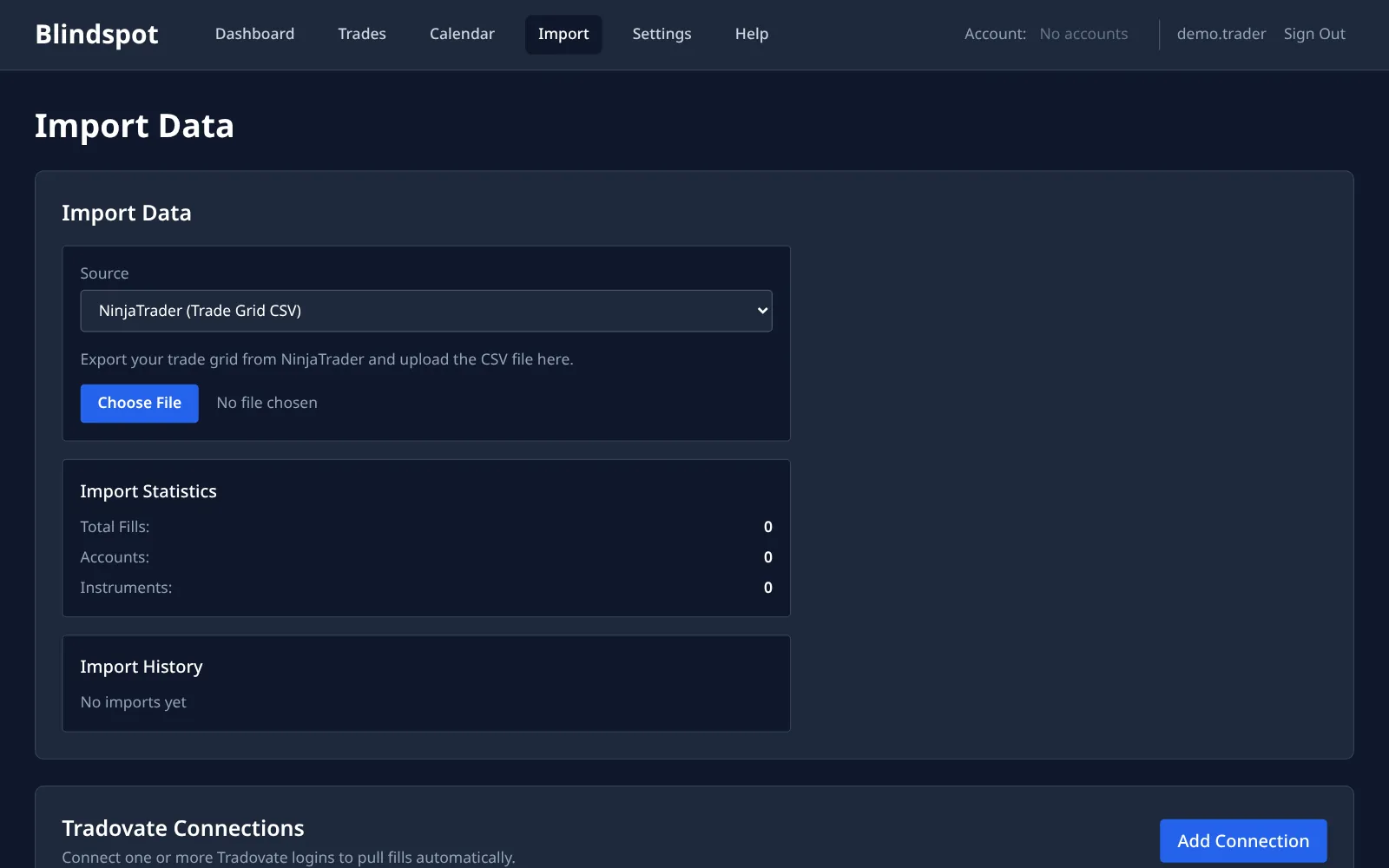
In Blindspot go to Import, choose NinjaTrader (Trade Grid CSV) as the source and upload the file. Contract names like MNQ 12-26 are converted to standard symbols such as MNQZ6, so the same contract lines up with trades you import from Tradovate or TopstepX.
5 Review your trades
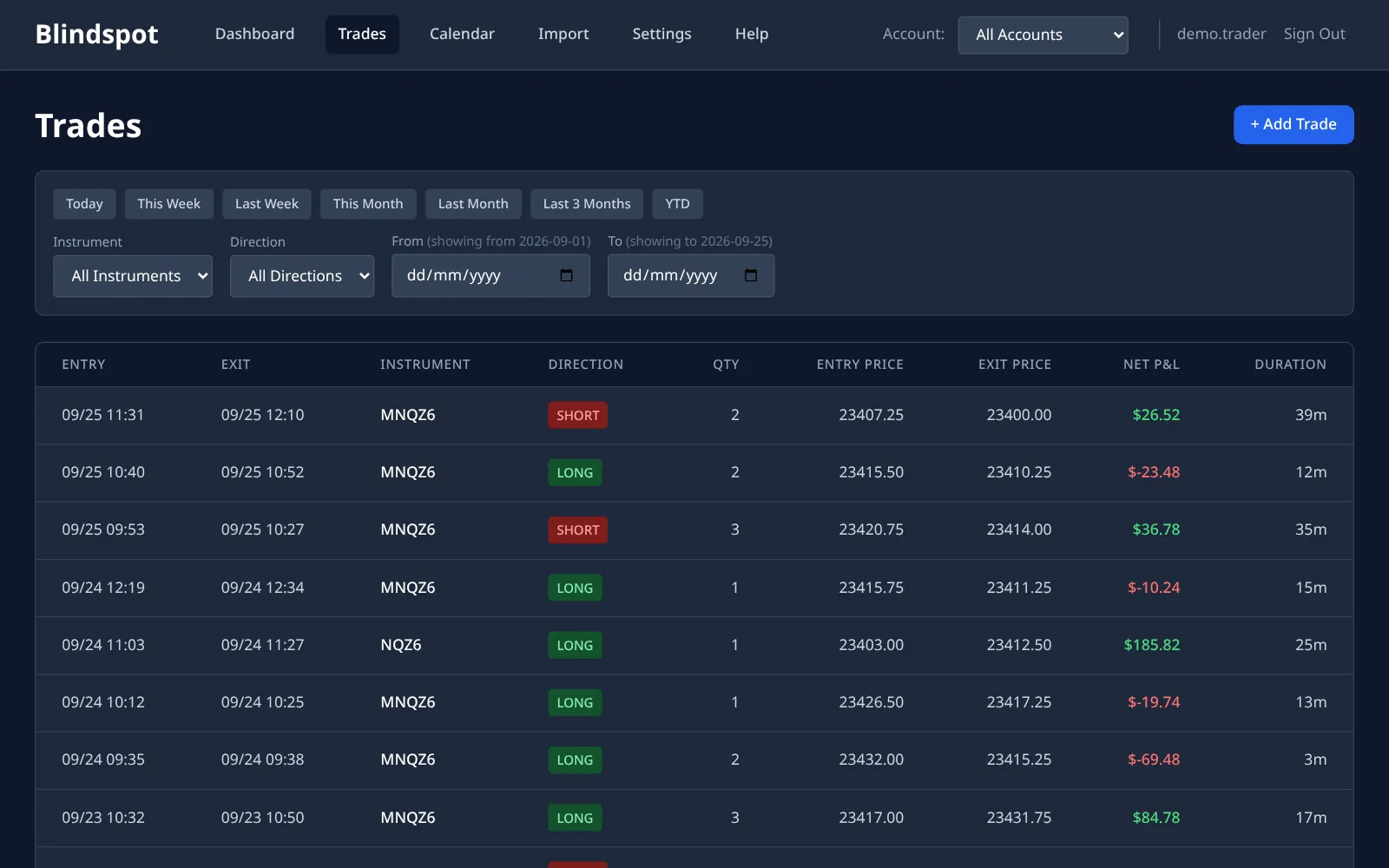
Every trade is listed with its entry, exit, size, net P&L and holding time. Open one to add notes, tags and a screenshot of the chart. The dashboard and calendar fill in at the same time.
Get the time zone right first
NinjaTrader writes entry and exit times in the time zone chosen in its own options (Tools › Options › General), and the export does not say which zone that was. Blindspot reads those times in the time zone set in Blindspot Settings. If the two differ, trades land an hour or more off, and evening sessions can land on the wrong day. Set both to the same zone before your first import. Most futures traders use New York or Chicago time.
What Blindspot adds to NinjaTrader's own reports
Trade Performance is a capable statistics window. It is not a journal: nothing you learn about a trade stays attached to it, and each report covers only the accounts NinjaTrader can see. Blindspot fills that gap:
- A journal on every trade. Notes, tags for setup, mistake and emotion, and chart screenshots, all saved on the trade itself.
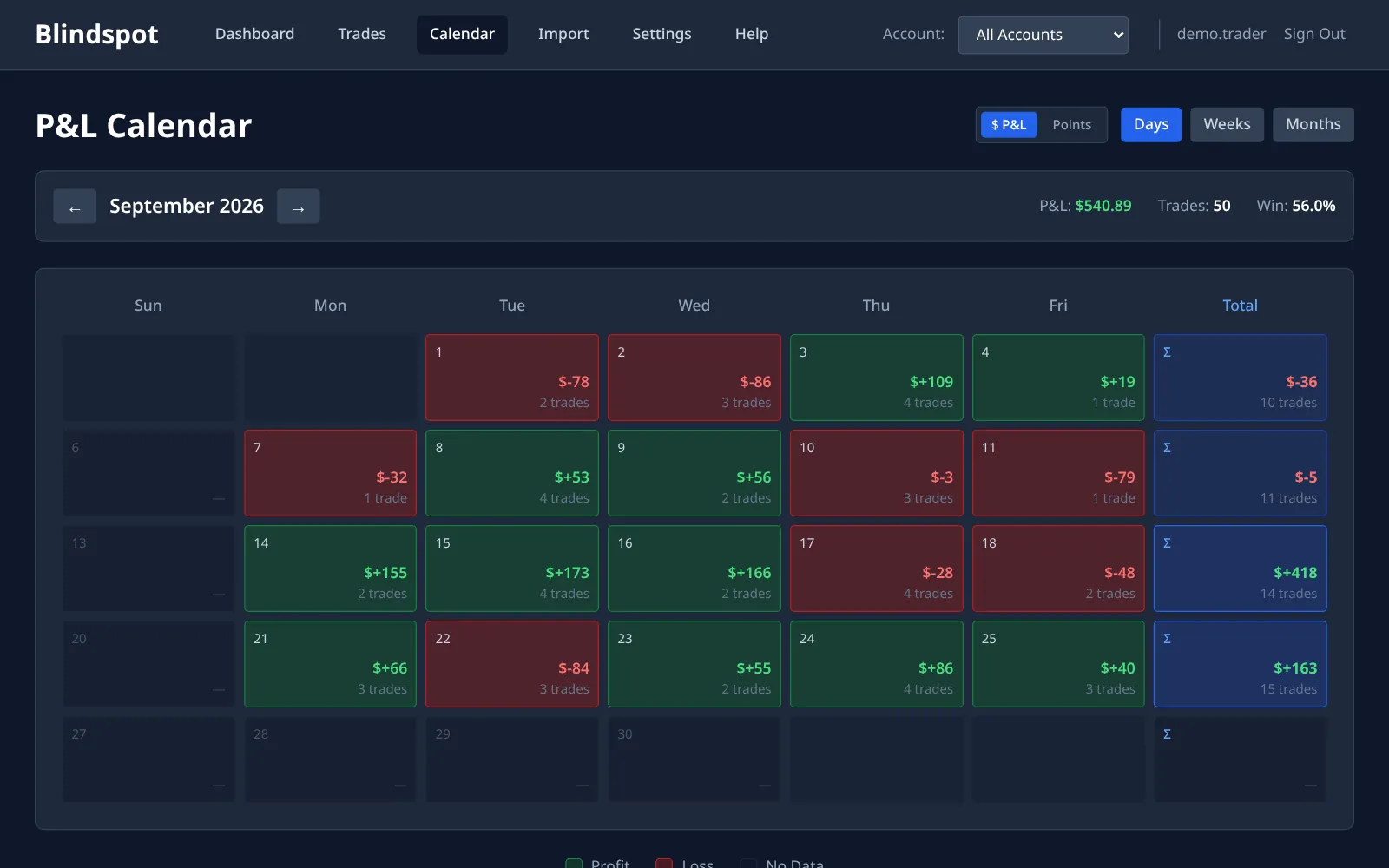
- Calendar P&L. Every session coloured by result, with weekly totals, so revenge-trading days and losing streaks are obvious.
- Your own daily rules. Set a daily loss limit, a maximum number of trades or a profit target to stop at. The calendar marks every day you kept to them and every day you didn't.
- Playbooks. Write the entry and exit criteria for each setup, tick the ones you actually followed on each trade, and see what skipping a rule costs.
- One view across platforms. NinjaTrader, Tradovate and TopstepX accounts sit side by side, or combined under All Accounts.
- A mentor can look over your shoulder. Share an account read-only with someone who can comment on individual trades.
Frequently asked questions
Does this work with prop-firm accounts in NinjaTrader?
Yes, if the account shows up in NinjaTrader's Trade Performance window. Its trades export the same way as Sim101 or a brokerage account. Each account in the file becomes its own account in Blindspot, named exactly as NinjaTrader names it, so an evaluation and a funded account never get mixed together.
I exported Executions instead of Trades. Does that work?
No. The Executions view lists individual fills, while Blindspot's NinjaTrader import reads the Trades view, where each row is a complete trade. If you upload the wrong view, the import tells you which export it expected. Switch the display to Trades and export again.
My trades show up an hour or a day off. Why?
NinjaTrader writes times in the time zone set in its own options and does not record which zone that was. Blindspot reads the times in the time zone set in Blindspot Settings. Make the two match before your first import.
Can I re-import without duplicating trades?
Yes. Blindspot recognises a trade it already has by its account, contract, entry and exit times, size and prices, so overlapping exports never double-count. Exporting everything and uploading the whole file each week is fine.
Where do commissions come from?
From the export: the Commission column plus the Clearing, Exchange, IP and NFA fee columns are subtracted from each trade's profit. If your export shows no commission, for example on a sim account, you can set a per-contract rate for that account in Blindspot Settings.
How much does it cost?
Blindspot is free while in beta. No credit card required.
Also works with
Blindspot also imports from Tradovate and TopstepX, as well as AMP / CQG, MetaTrader 5, TradingView and DayTraders.com exports. Pick the source on the Import page. Trades can also be entered by hand.
Stop guessing. Start measuring.
Export your NinjaTrader trades and see your real edge in a few minutes.
Create your free account